
You need to do this yourself. We can't create or verify a Google profile for you, because Google needs to see that it is really your business. It takes about 20 minutes, and verification can take a few days, so start today.
- 1Make a Google account with your business email
- 2Claim or create your Google profile
- 3Get your Google profile verified
- 4Add UK Trade Leads as a manager
Before you start
- Your phone, and about 20 minutes.
- Your business email address and its password. If we set one up for you, use that one: we sent you the address, the password and the link to open the inbox.
- Your business inbox open in another tab, so you can copy the code Google sends you.
1. Make a Google account with your business email
About 5 minutes
It is free. If you don't have a business email, tell us and we'll set one up for you.
Follow these 4 screens
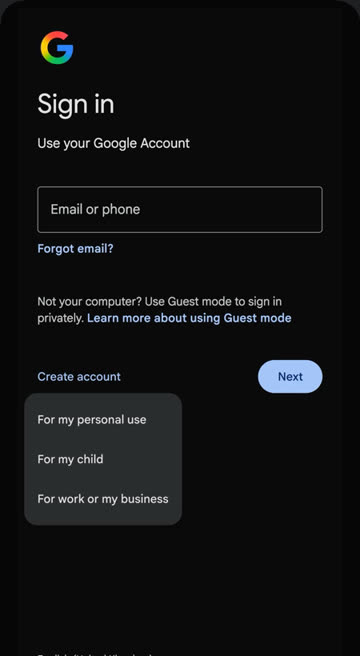
Go to accounts.google.com. Tap Create account, then For work or my business.
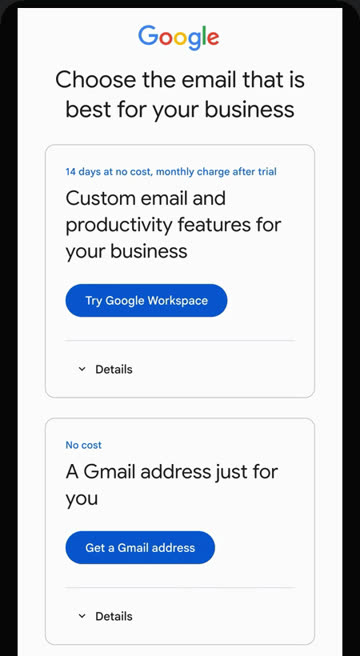
If you see this, ignore Google Workspace (it costs money). Tap Get a Gmail address. You will swap to your own email in a moment.
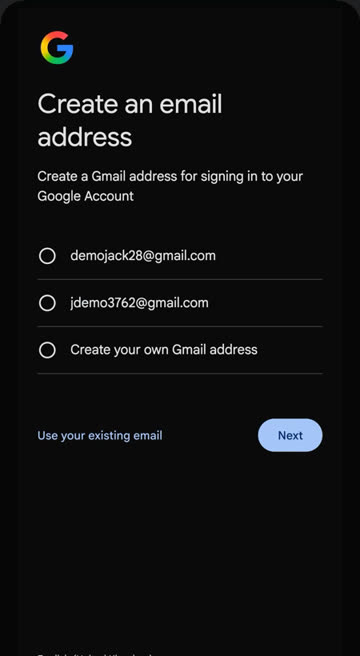
After your name and date of birth, Google offers a new Gmail. Tap Use your existing email instead.
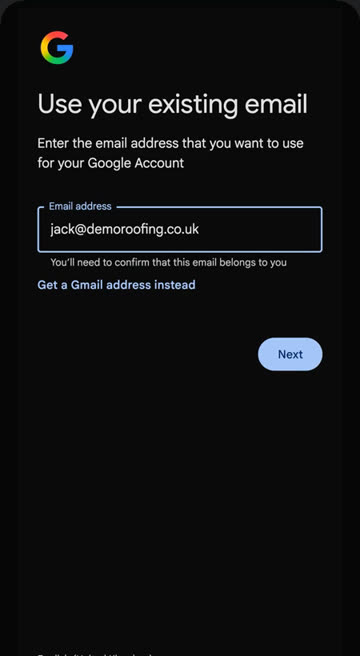
Type your business email and tap Next. Then copy the code Google emails you, paste it in, and choose a password.
Swipe sideways to see every screen. Tap a screen to make it bigger.
Every step in words
- On your phone, open Chrome or Safari and go to accounts.google.com.
- Tap Create account, then For work or my business.
- Enter your first and last name. Tap Next.
- When Google offers a new Gmail address, tap Use your existing email instead.
- Type your business email. Tap Next.
- Open your business inbox in a new tab. Copy the code Google sent you.
- Go back to Google, paste the code and tap Next.
- Choose a strong password. Write it down somewhere safe, like a notes app with a lock.
- Finish the steps on screen. If it asks for a phone number, use your own mobile.
Tips
- Use your business email, not a personal Gmail. If you ever sell the business or change staff, it stays clean.
2. Claim or create your Google profile
About 10 minutes
Follow these 6 screens
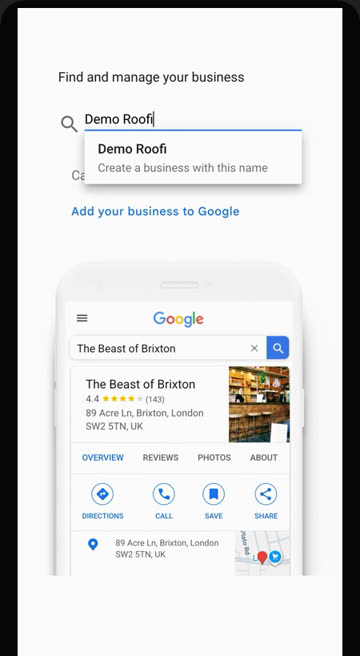
Go to business.google.com/add. Type your business name. Tap Create a business with this name.
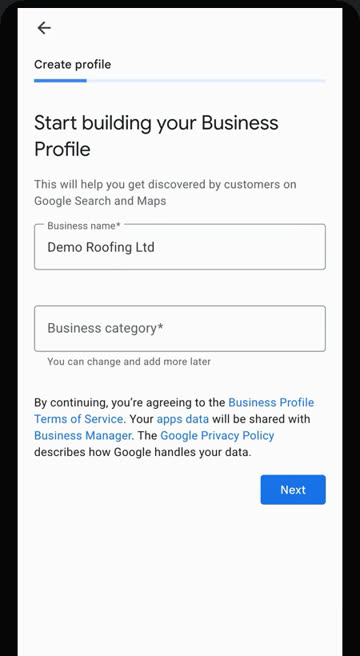
Check the name is exactly as it is on your van and website.
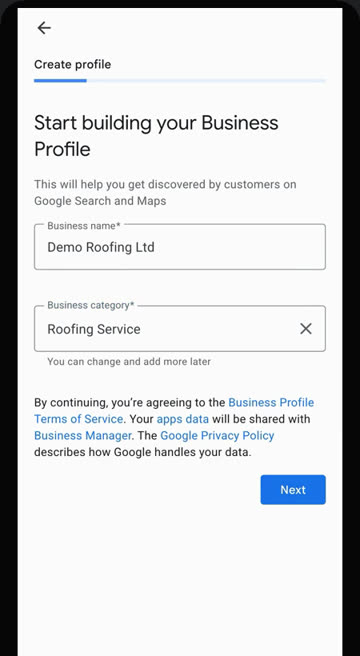
Start typing your trade and pick the closest category.
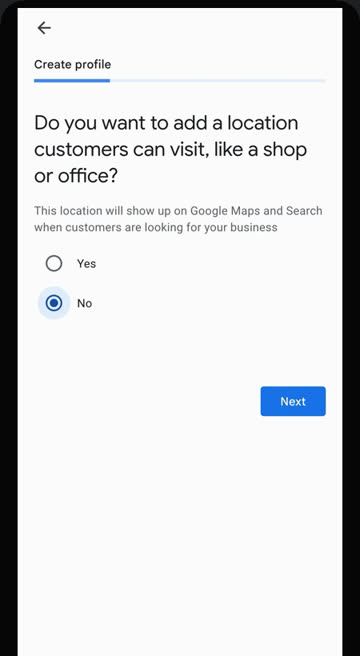
Customers don't come to you? Tap No, then Next.
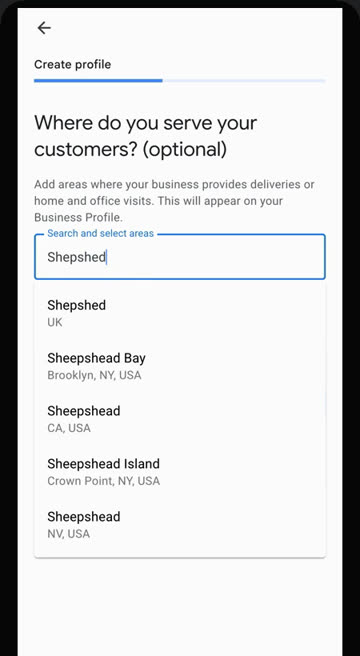
Add the towns and areas you cover.
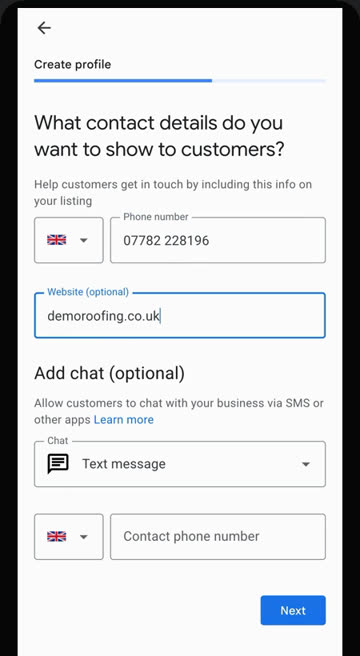
Add your business number and your website, then Next. Google will ask you to verify.
Swipe sideways to see every screen. Tap a screen to make it bigger.
Every step in words
- Make sure you are signed in to Google with your business email account.
- Already on Google Maps? Open the Google Maps app, search your business name, tap it, tap About, then Claim this business, then Manage now. Then jump to step 9.
- Not on Maps yet? Open business.google.com/add in your phone browser.
- Tap Add your business to Google.
- Type your business name exactly as it appears on your van and website.
- Choose your category. Start typing your trade and pick the closest match (see tips).
- Asked if you want to add a location customers can visit? Tap No if customers don't come to your premises. Add the towns and areas you cover.
- Enter your business number and your website.
- Google will ask you to verify. Carry on to the next step.
Tips
- Category ideas: Roofing contractor, Plumber, Heating contractor, Electrician, Builder, Pest control service, Paving contractor, Landscaper, Cleaning service, Security system installer, Window installation service, Door supplier. Jack will fine-tune extra categories later.
- Do not add words like "Best" or "Cheap" or your town to the business name. Google can suspend profiles for it.
- Google may still ask for your address to verify you. If you tapped No to a customer location, it stays hidden from the public.
- Google says someone else already manages this profile? Tap Request access and follow the steps, then tell Jack.
3. Get your Google profile verified
About 3 minutes. Then up to 5 working days
Google will ask you to prove the business is yours. You have to do this step yourself, on your own phone. We can't do it for you.
Google picks one of these for you
- Text or callA code comes to your business number. Type it in.
- EmailOpen your business inbox and tap the link from Google.
- VideoOne clip, 30 seconds or more: street sign, your van or tools, and proof the business is yours.
- PostcardA 5-digit code comes by post. Change nothing on the profile while you wait.
Step by step
- Open your profile: search your business name on Google while signed in, or go to business.google.com.
- Tap Verify (or Get verified) and look at the options Google gives you. You cannot change them.
- Phone or text code: the code goes to your business number. Enter the code.
- Email: open your business inbox and tap the link from Google.
- Video recording: plan first. One continuous clip of at least 30 seconds, recorded in the profile on your phone. Show your area (street sign), your van or tools, and proof you run the business (unlock the van, show an invoice with your business name).
- Postcard: Google posts a 5-digit code to your address. Do not edit your profile while you wait. Enter the code when it arrives.
- Wait for Google. Reviews usually take up to 5 working days.
Tips
- Do not change your business name, address or category while you are waiting. It can restart verification.
- Video rejected? You will see a Review issues message. Tap it and follow the steps, or send Jack a screenshot.
4. Add UK Trade Leads as a manager
About 2 minutes
[email protected]Tap and hold to copy it.Follow these 4 screens
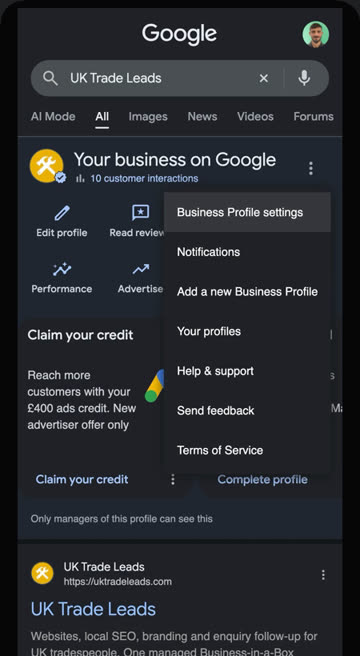
Search your business name on Google while signed in. Tap the three dots, then Business Profile settings.
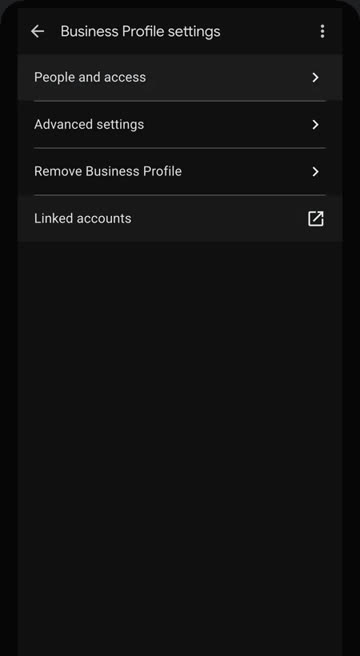
Tap People and access.
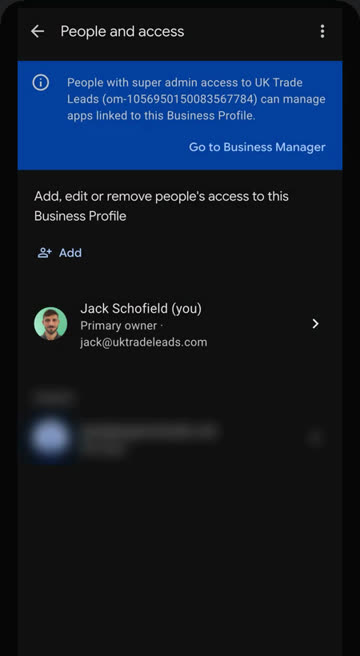
Tap Add.
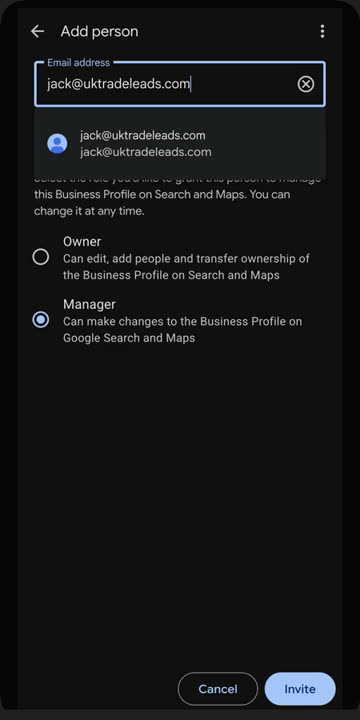
Type [email protected], choose Manager (not Owner), then tap Invite.
Swipe sideways to see every screen. Tap a screen to make it bigger.
Every step in words
- Open business.google.com on your phone, signed in with your business Google account.
- Tap the three dots (More), then Business Profile settings.
- Tap People and access.
- Tap Add.
- Type our email: [email protected].
- Under Access, choose Manager. Not Owner.
- Tap Invite. Done.
Tips
- You stay the owner. You can remove us any time from People and access.
- Never send anyone your Google password. This is the safe way to give access.
- Already had a Google profile before you joined? You still need to do this step.
Stuck on a step? Email [email protected] and tell us which step.